How to set up and use the app
Demo video (1:39) – connecting a space, filters, reports, alerts and personal notifications:
1. Requirements and installation
- Google Workspace (Business or Enterprise). Incoming webhooks are not available for personal Gmail accounts.
- Your Google Workspace administrator must allow incoming webhooks for Google Chat. If the "Webhooks” option is missing in a space, ask them to enable it.
- Jira Cloud (any plan). Team spaces, reports and alerts are managed by Jira administrators; personal notifications can be set up by every user. Jira Service Management details (request type, SLA) appear automatically for service projects.
- Open Jira → Settings → Apps → Find new apps (or visit the Atlassian Marketplace).
- Search for Chat Relay and click Get app / Try it free.
2. Get a webhook URL from Google Chat
- In Google Chat, open the space that should receive Jira updates.
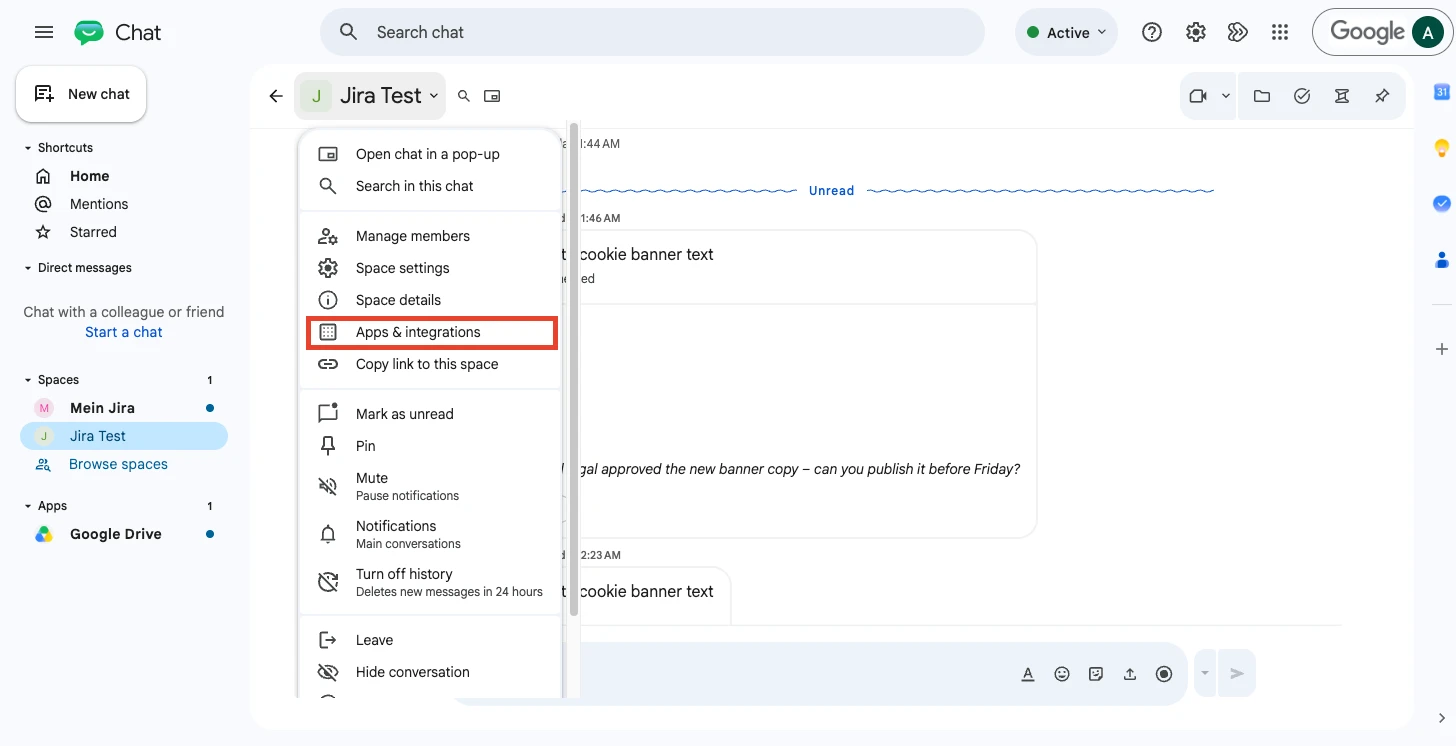
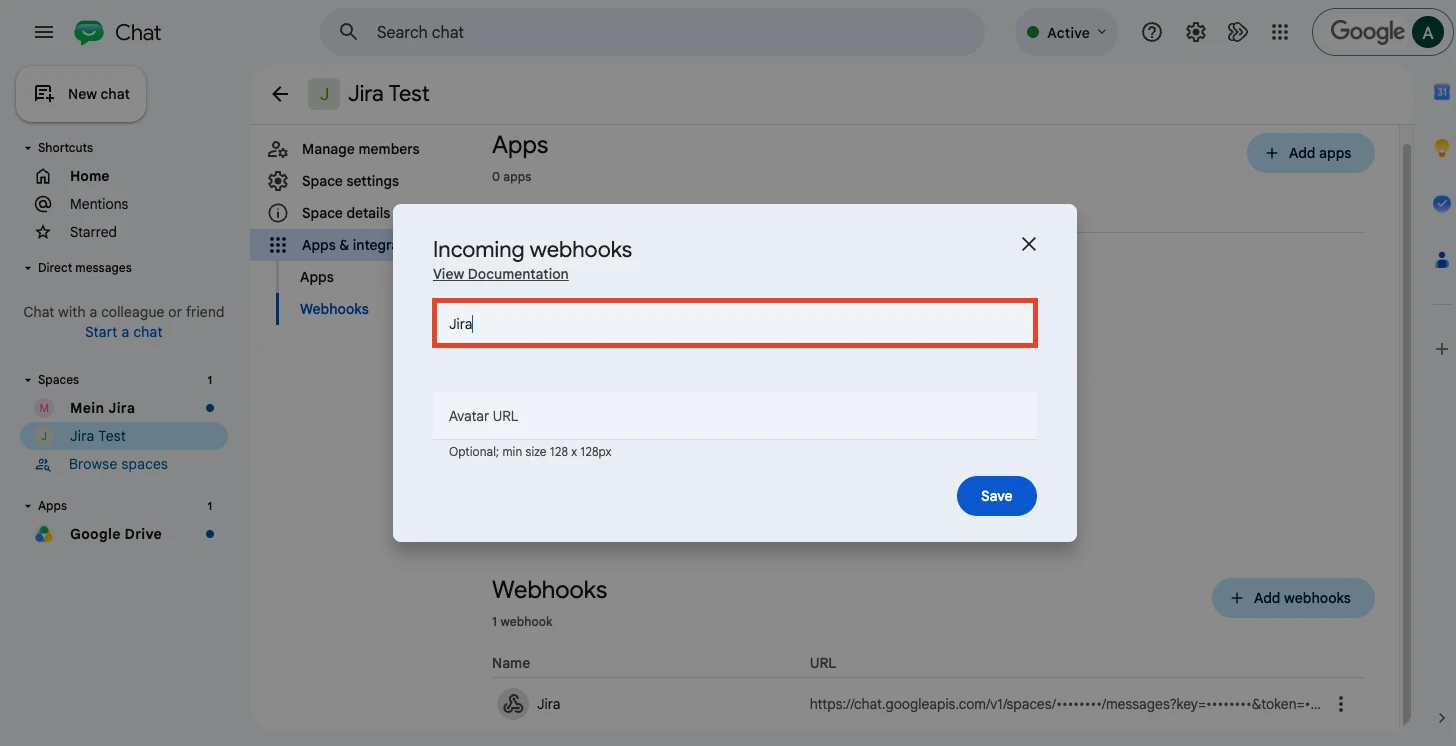
- Open the menu at the space name → Apps & integrations → Webhooks → Add webhook. Give it a name (e.g. "Jira”) and save.
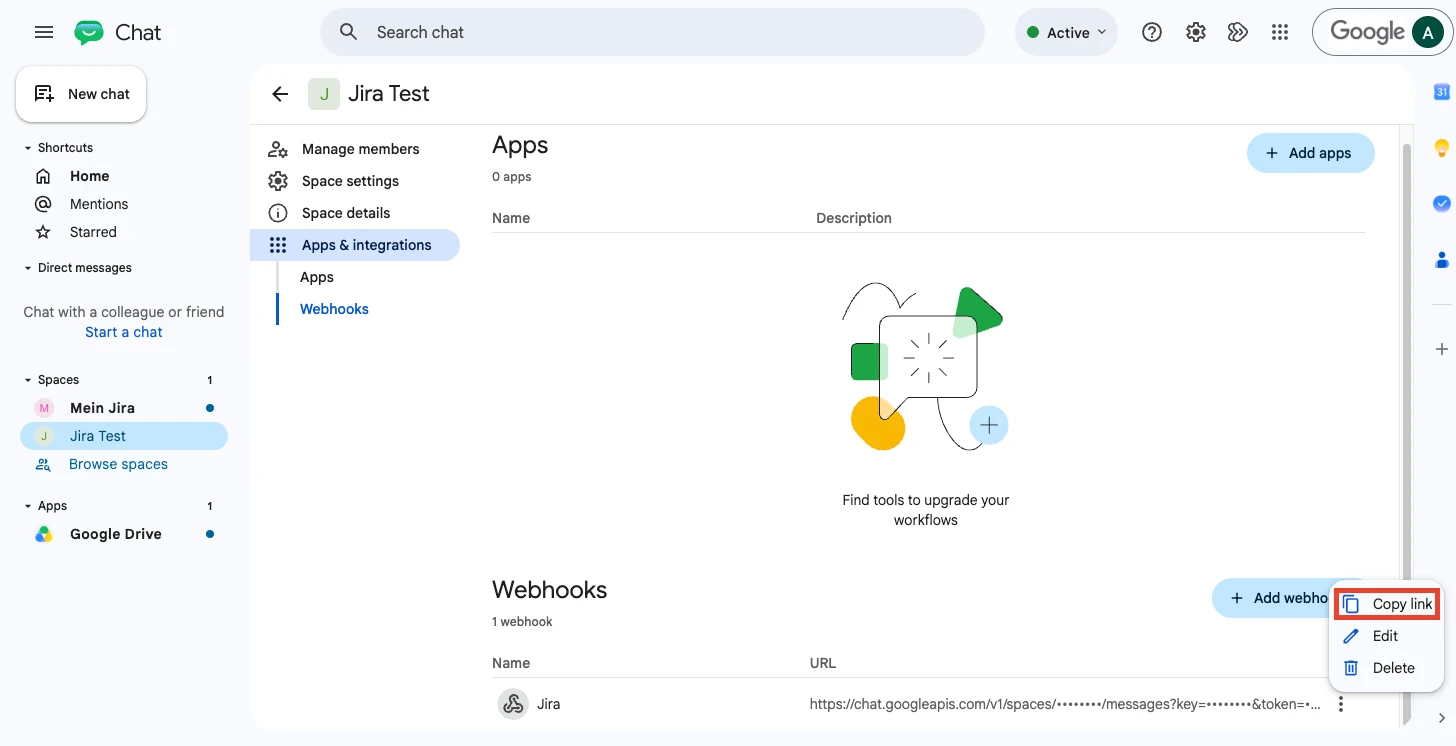
- Copy the webhook URL. It starts with
https://chat.googleapis.com/v1/spaces/. Treat it like a password: anyone with the URL can post into the space.
3. Connect a team space (Jira administrators)
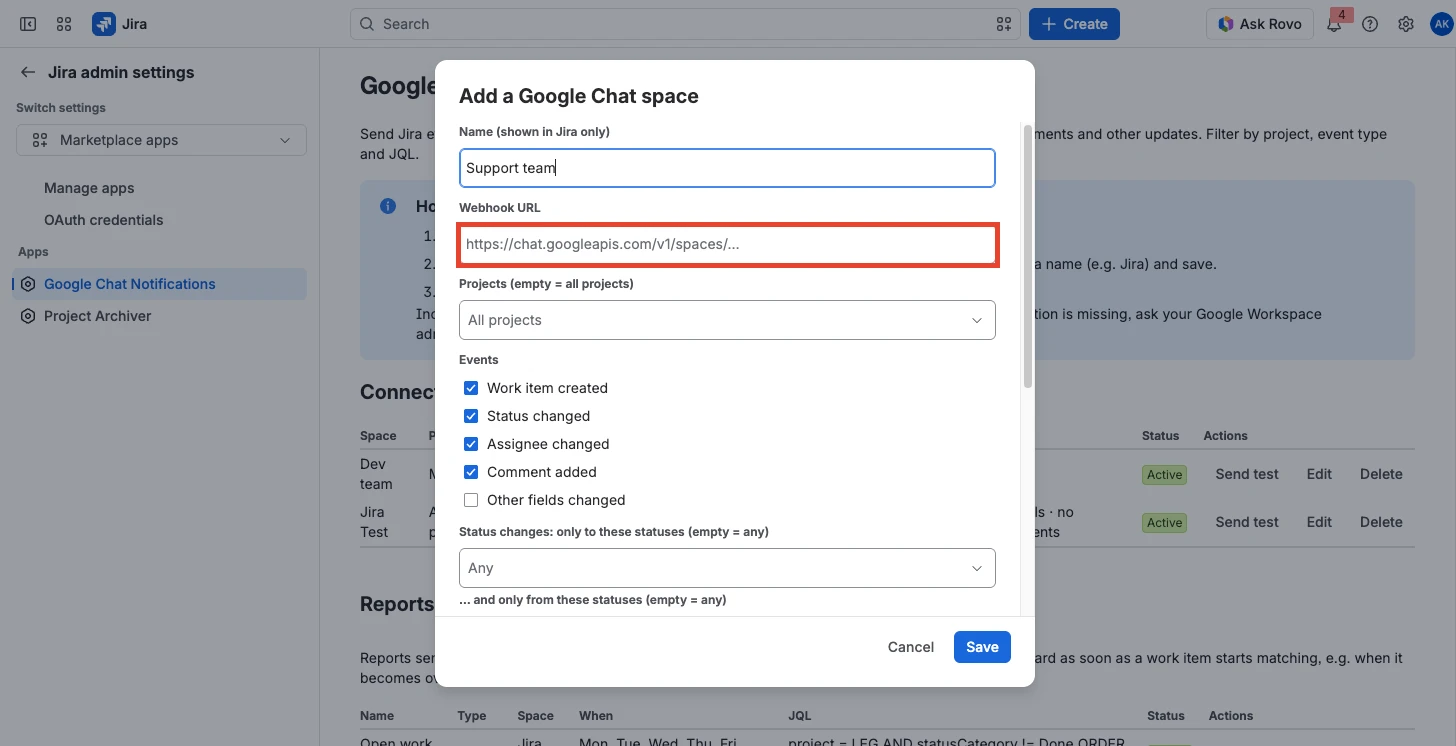
Open Jira → Settings → Apps → Chat Relay: Google Chat Notifications and click Add space:
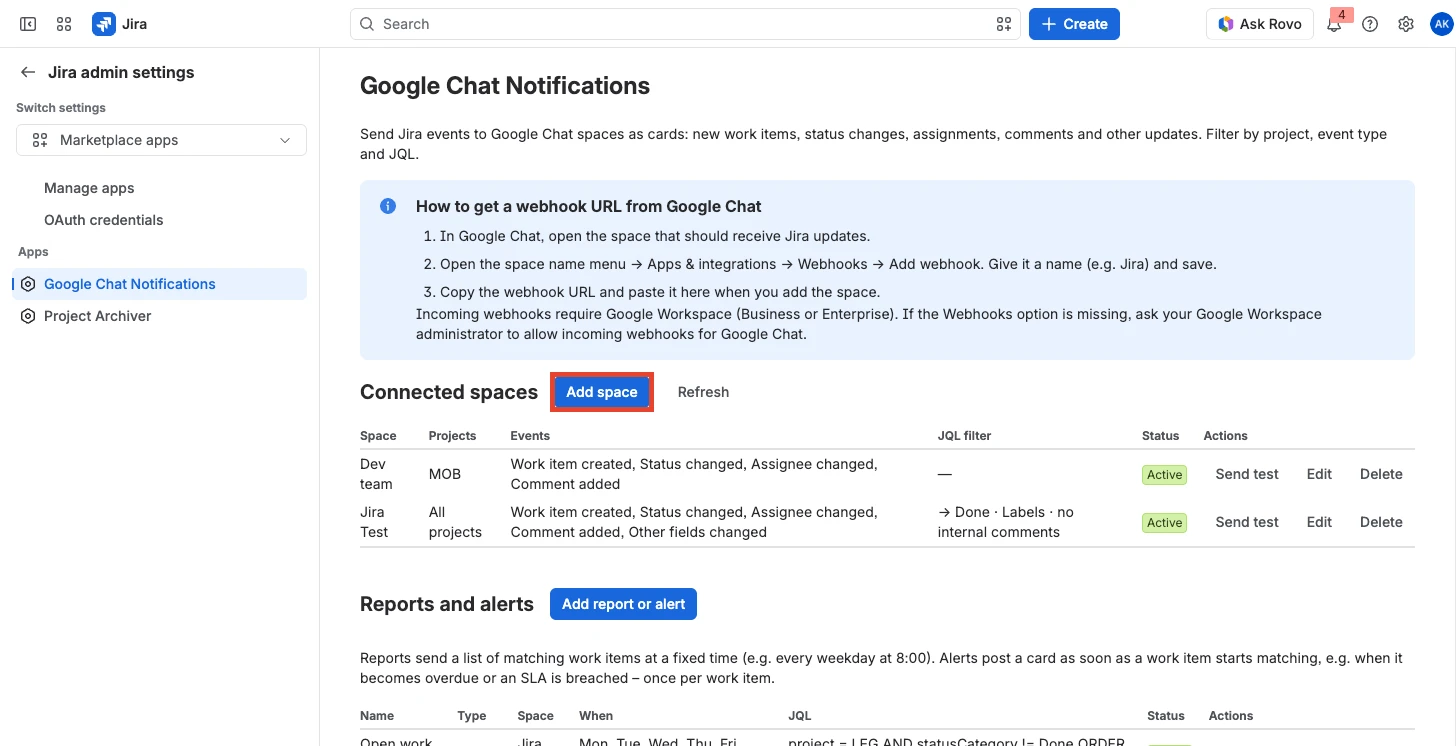
| Setting | Meaning |
|---|---|
| Name | Shown in Jira only. |
| Webhook URL | From step 2. Stored encrypted; leave empty when editing to keep the current one. |
| Projects | Empty = all projects. |
| Events | Work item created, status changed, assignee changed, comment added, other fields changed. |
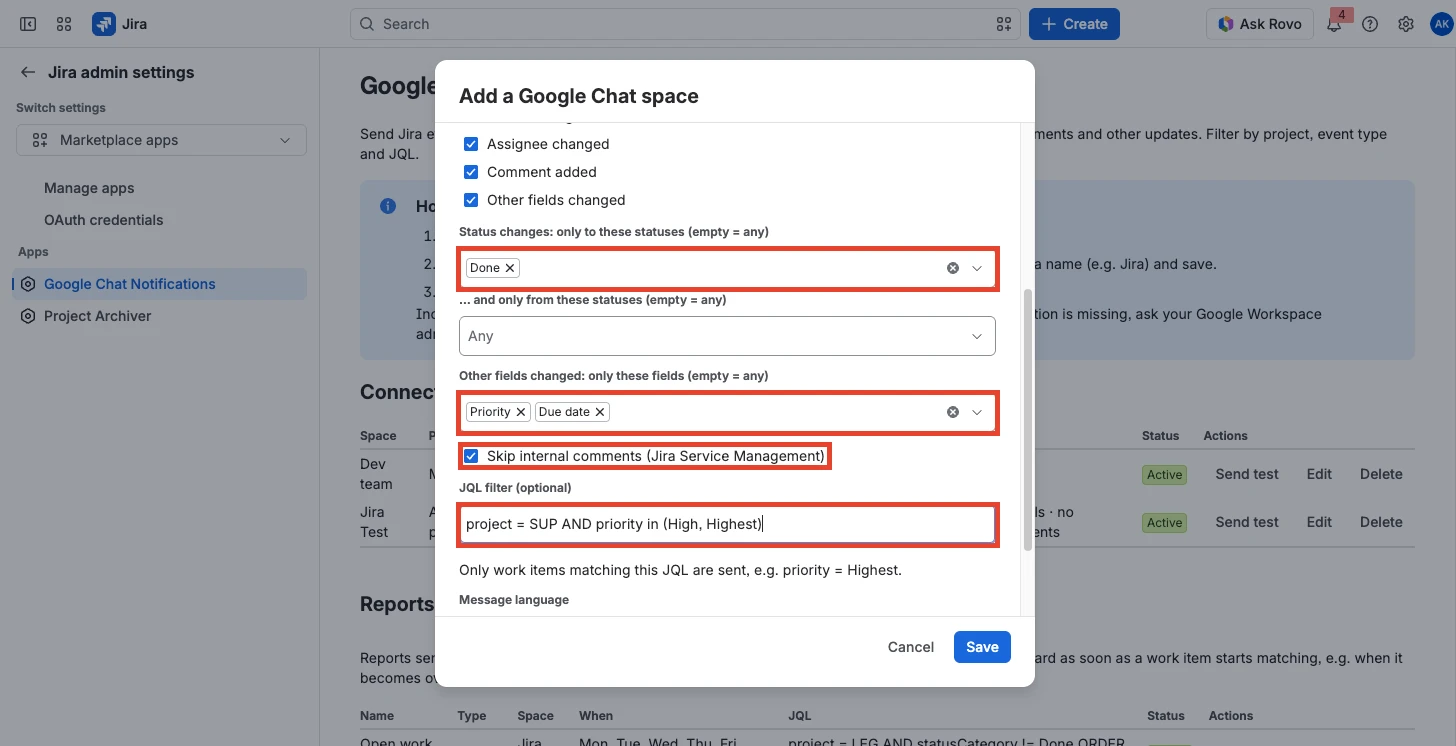
| Status changes: only to / only from | Optional. Send status changes only for certain transitions, e.g. only when a work item moves to Done, or only from In Review. Empty = every status change. |
| Other fields changed: only these fields | Optional. Send field changes only when one of the selected fields changes, e.g. Priority or Due date. The card then lists only these fields. |
| Skip internal comments | Jira Service Management: internal notes are not sent to this space; replies to customers still are. |
| JQL filter | Optional. Only work items matching this JQL are sent, e.g. priority = Highest. Invalid JQL is rejected with Jira’s error message. |
| Message language | English or German. |
| Threads | Group all updates of a work item in one thread. |
| Active | Pause a space without deleting it. |
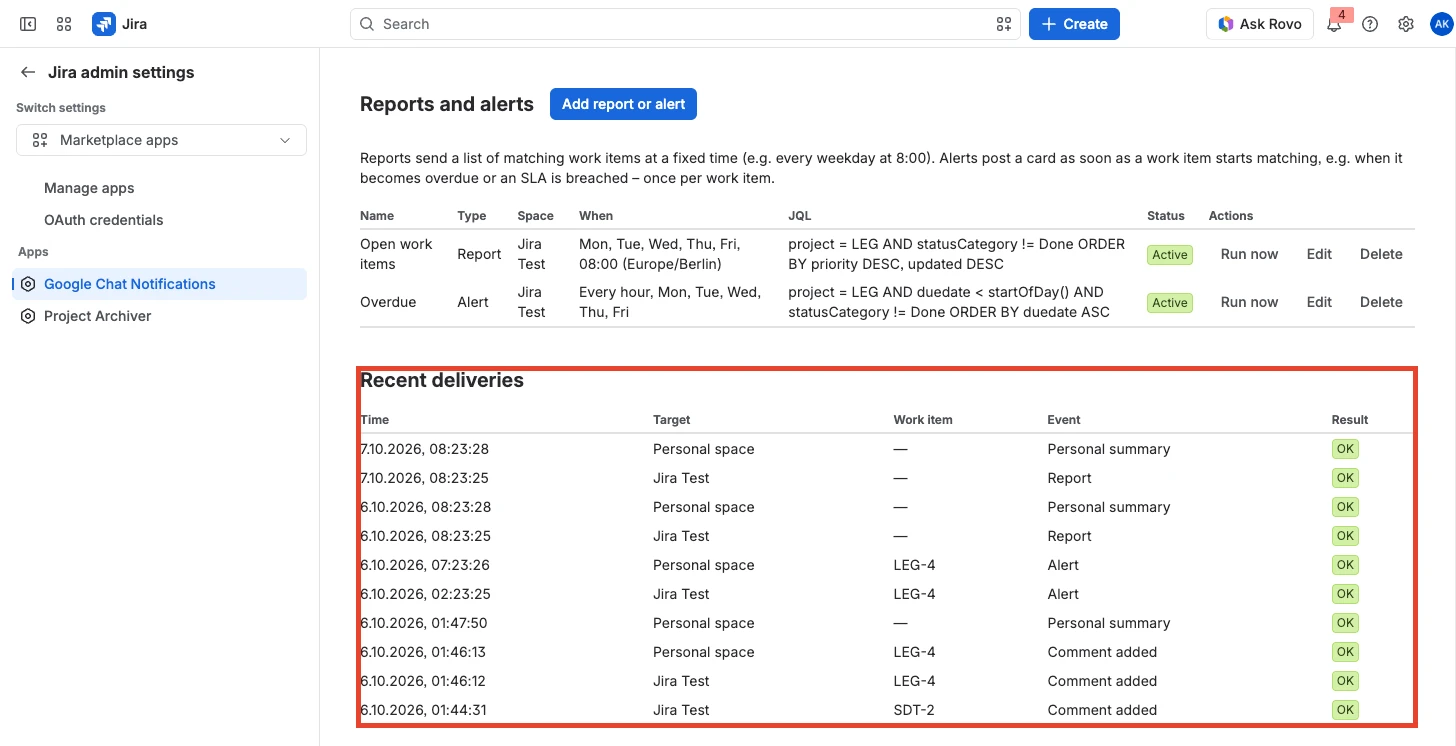
Click Send test to check the connection. Recent deliveries lists the last 30 messages with time, target, work item, event and the result returned by Google Chat.
4. Reports and alerts (Jira administrators)
Below the spaces, click Add report or alert. Start from a template or write your own JQL:
| Type | What it does | Templates |
|---|---|---|
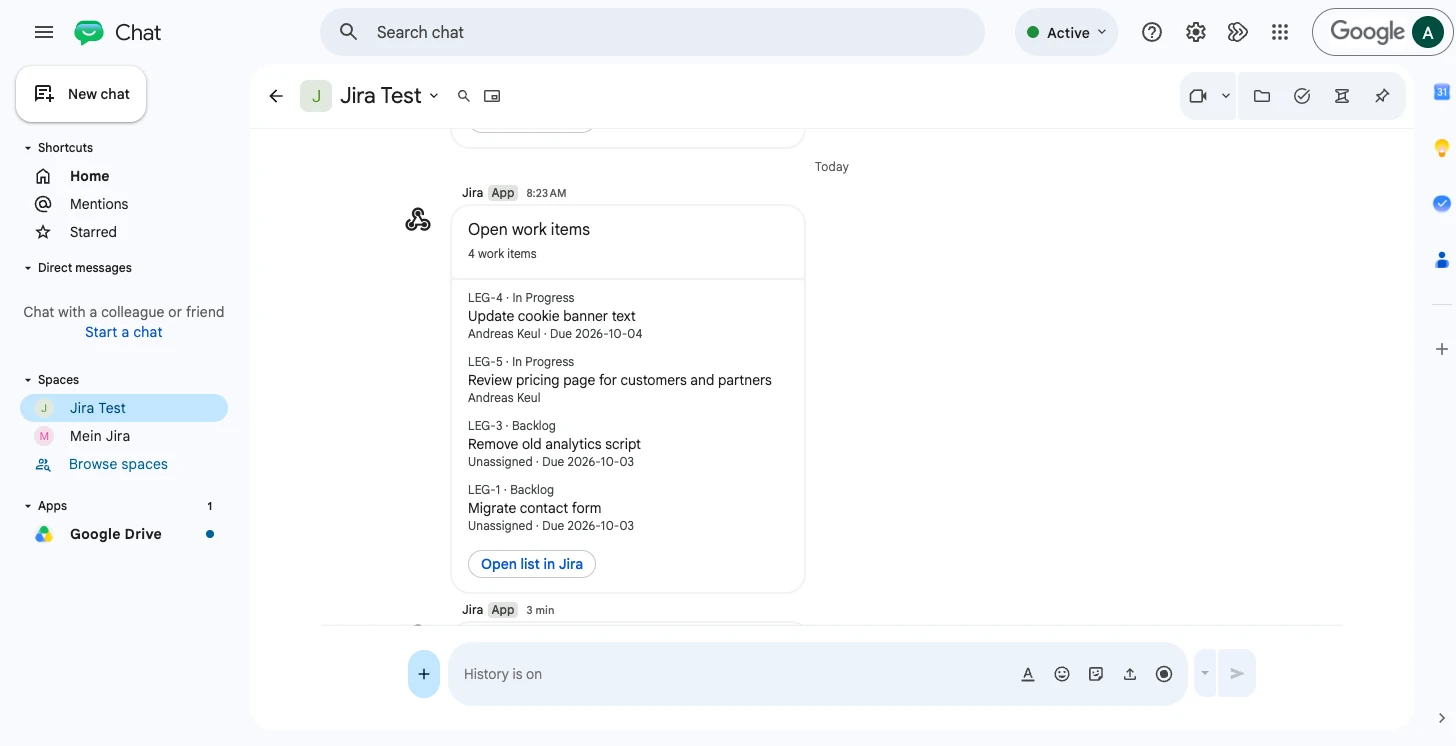
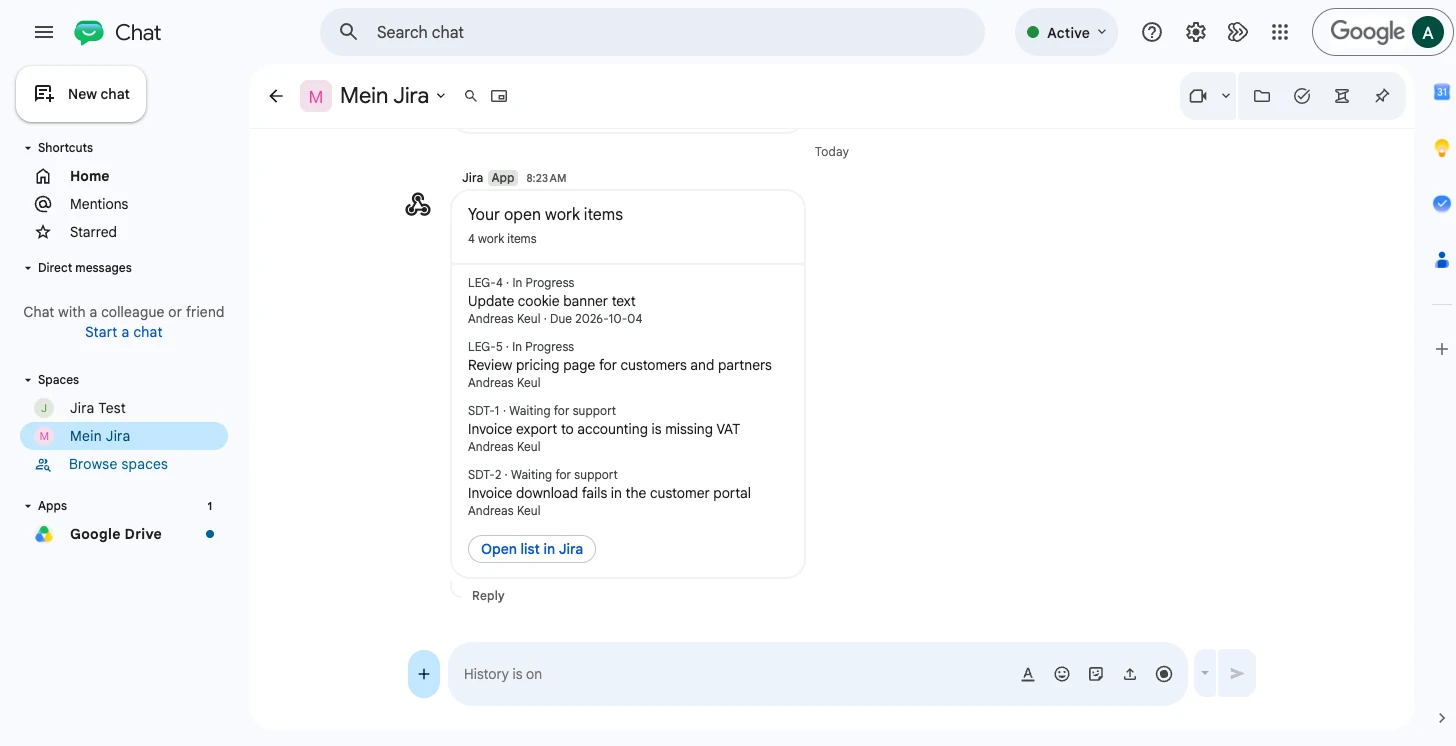
| Report | Sends one card with the number of matching work items and a list (up to 20) at a fixed time, e.g. every weekday at 08:00 in your time zone, with an Open list in Jira button. | Open work items · Created in the last 24 hours · Done in the last 7 days · Due this week |
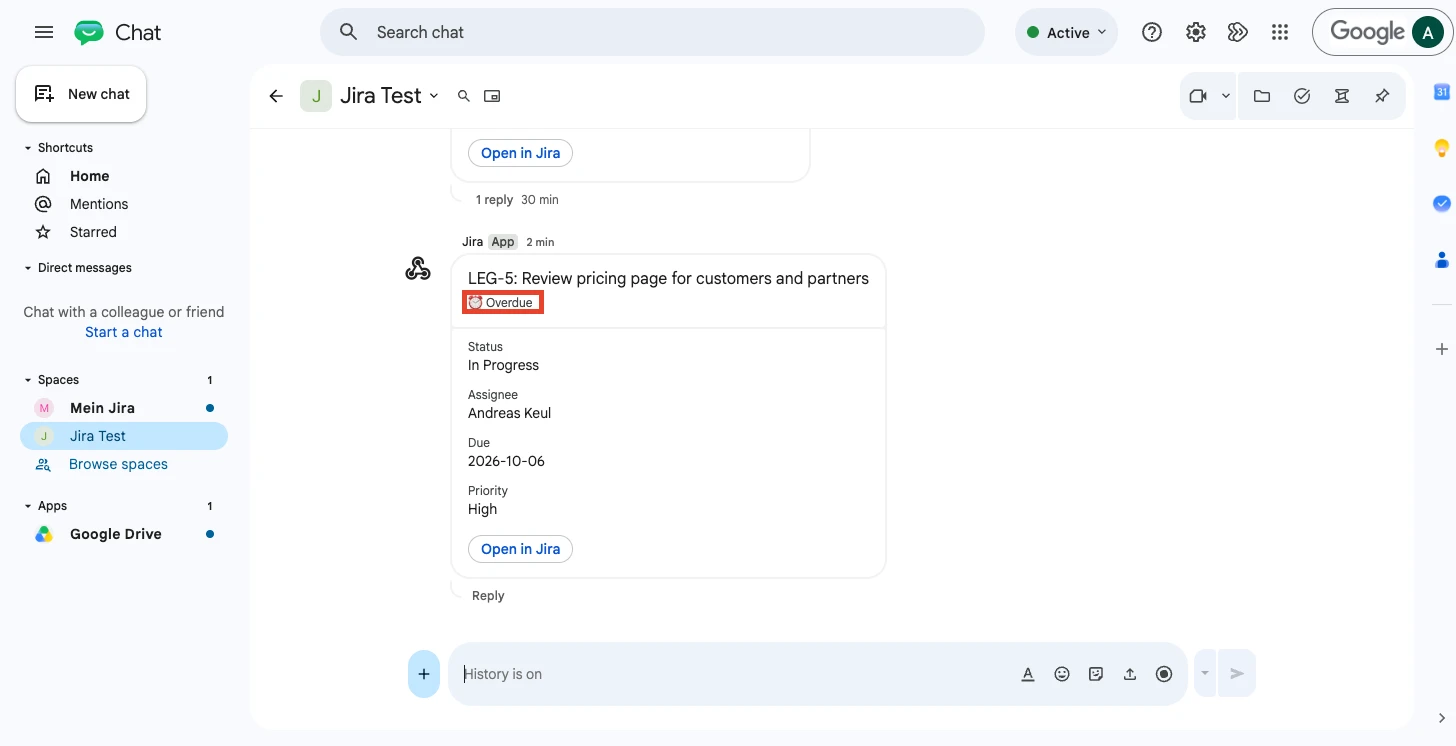
| Alert | Checked every hour (or once a day). Posts one card per work item as soon as it starts matching – e.g. when it becomes overdue or an SLA is breached. Each work item is alerted once while it keeps matching; if it stops matching and matches again later, it is alerted again. At most 10 cards per check, the rest as one summary line. | Overdue · Due tomorrow · Highest priority, unassigned · SLA breached · SLA breaches within 1 hour (Jira Service Management) |
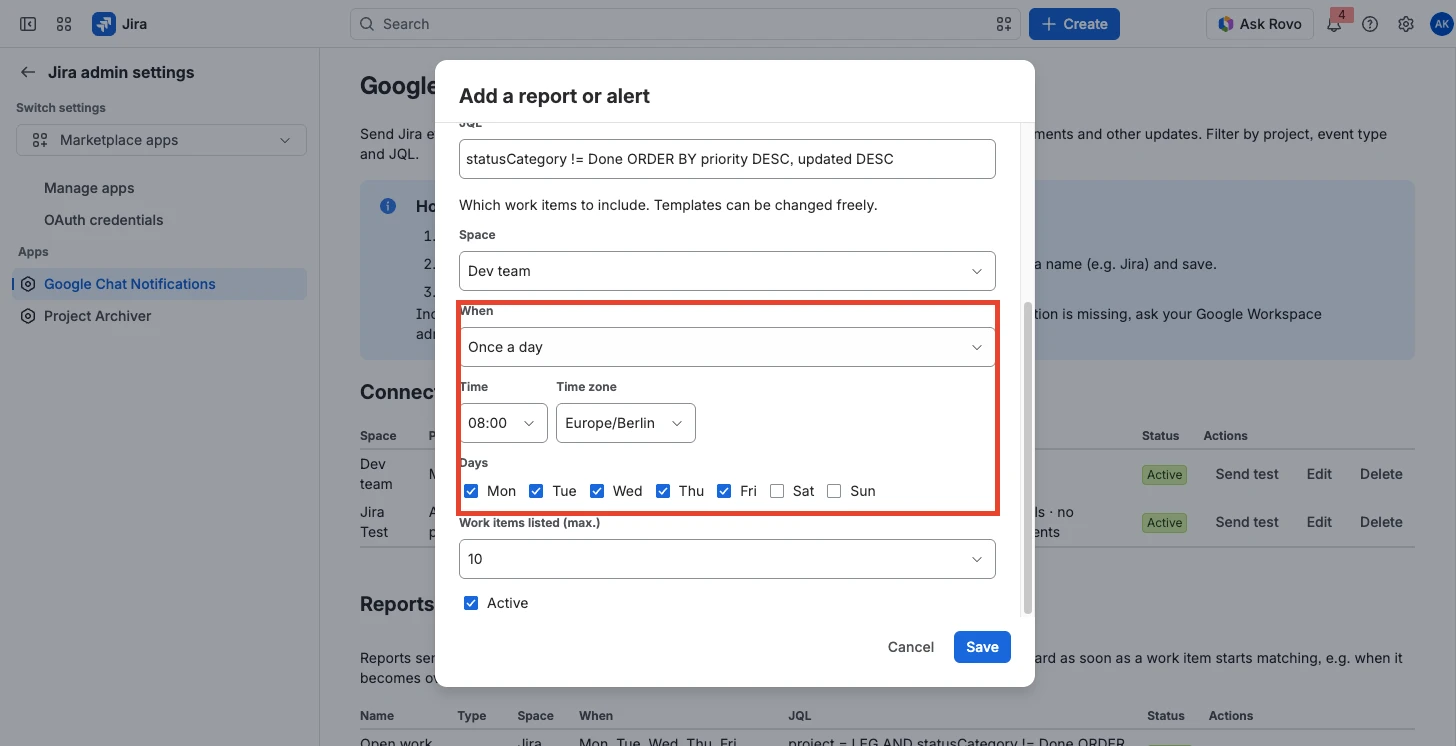
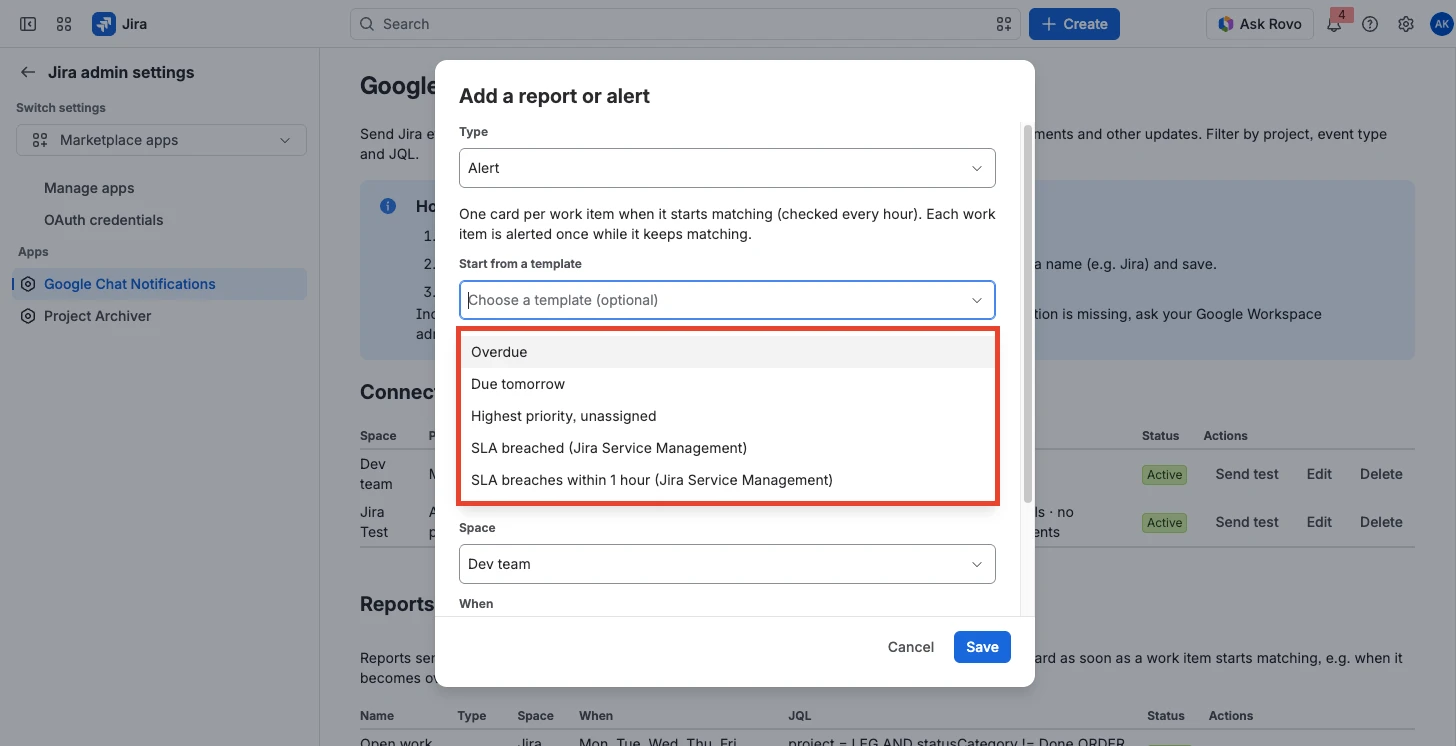
Choose the target space, the days, the time and the time zone. Run now sends the current list immediately, so you can check the result without waiting (for alerts this does not change which work items count as already alerted).
5. Personal notifications (every user)
- In Google Chat, create a space just for yourself (e.g. "My Jira”) and add a webhook as in step 2.
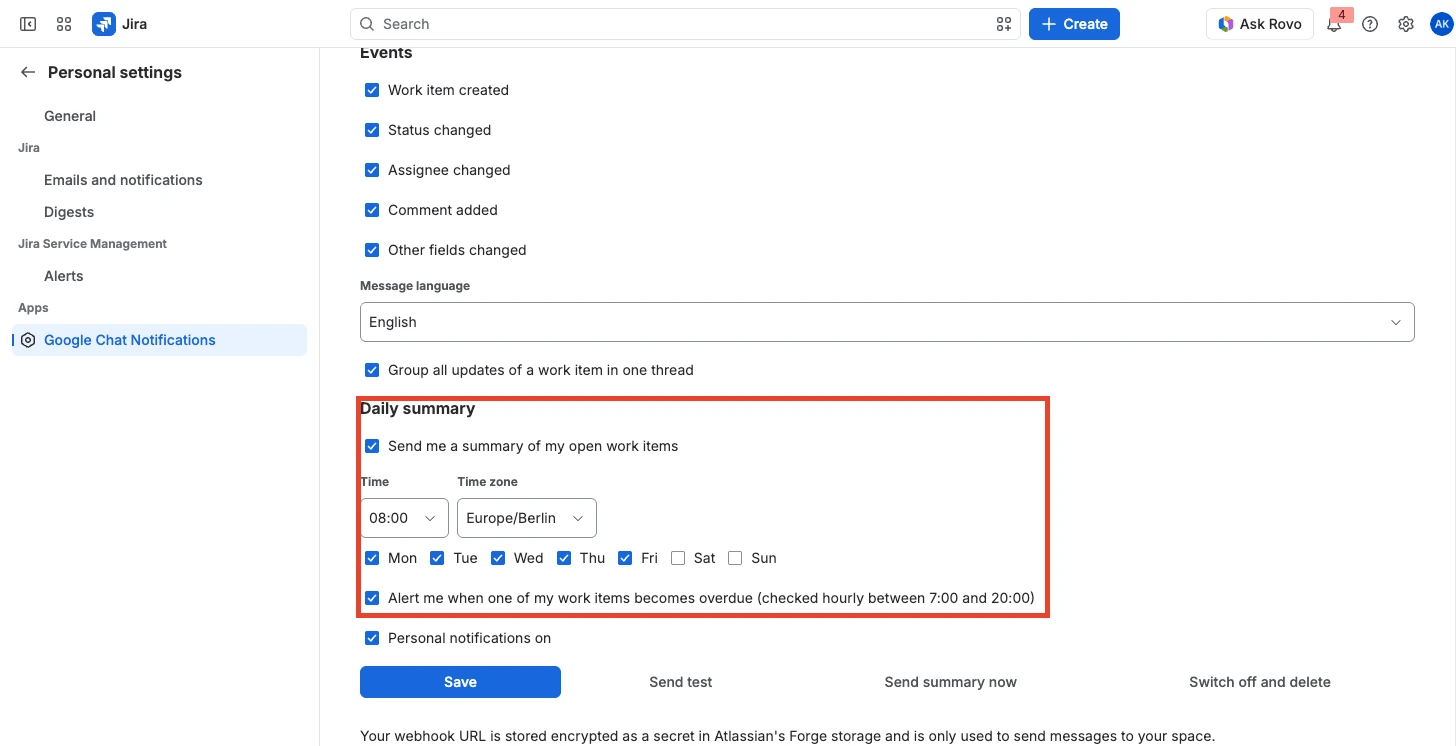
- In Jira open your profile → Personal settings → Chat Relay: Google Chat Notifications. On first use, Jira asks you to Allow access for the app.
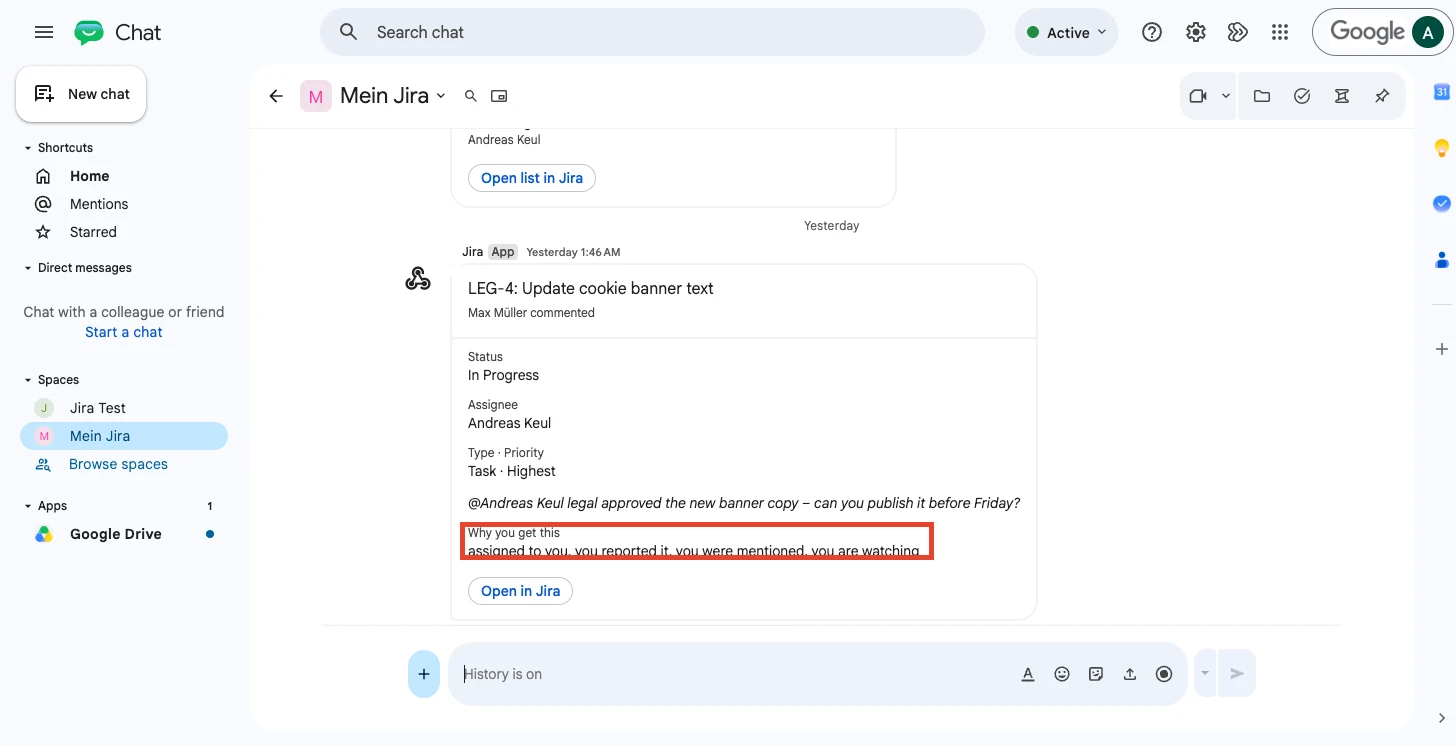
- Paste the webhook URL and choose which work items concern you: assigned to me, I reported, I am watching, mention me in a comment; then choose the events and click Save. Send test checks the connection.
- Optional: Daily summary – a list of your open work items on the days and at the time you choose (Send summary now shows it immediately). Overdue alert – a card when one of your work items becomes overdue (checked hourly between 07:00 and 20:00 in your time zone).
You never receive your own changes, and you only receive work items you are allowed to see in Jira. Switch off and delete removes your settings and webhook URL.
6. What a message contains
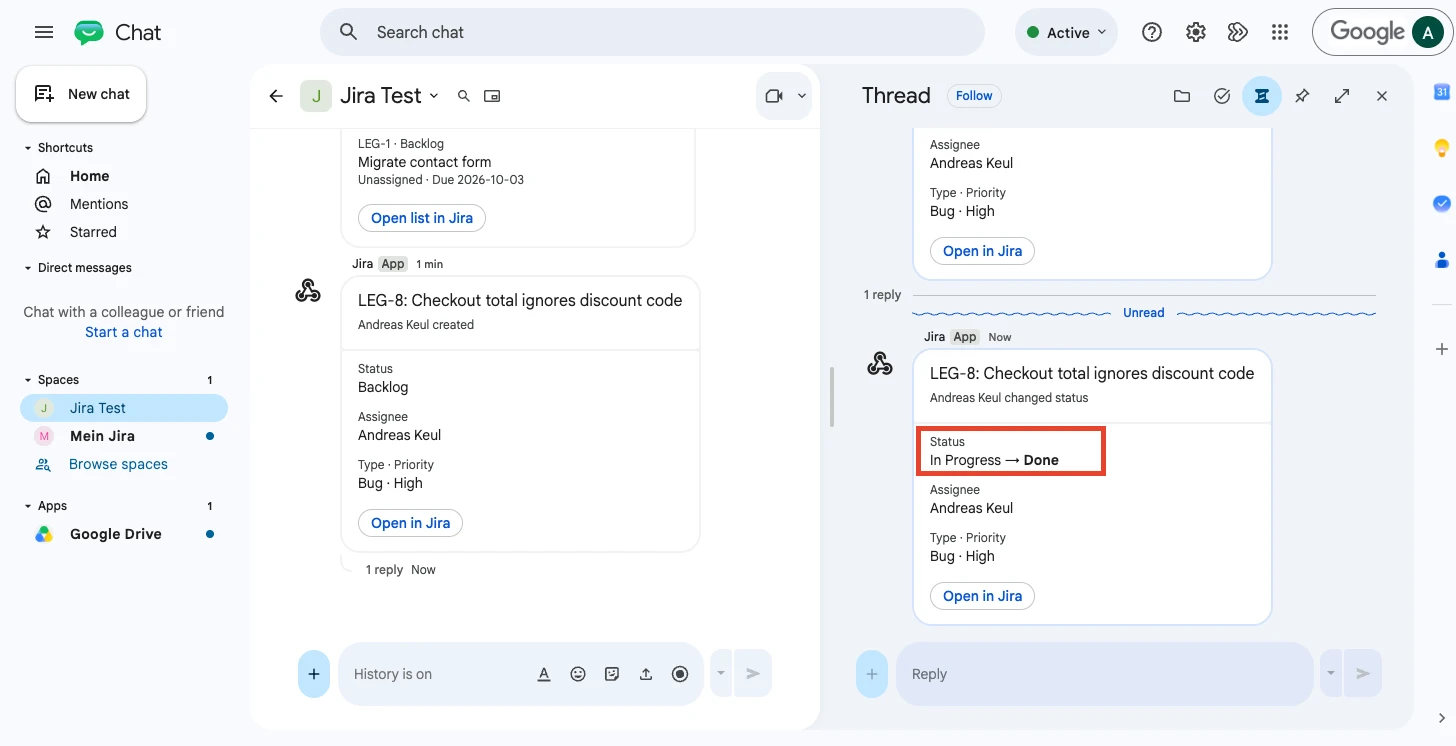
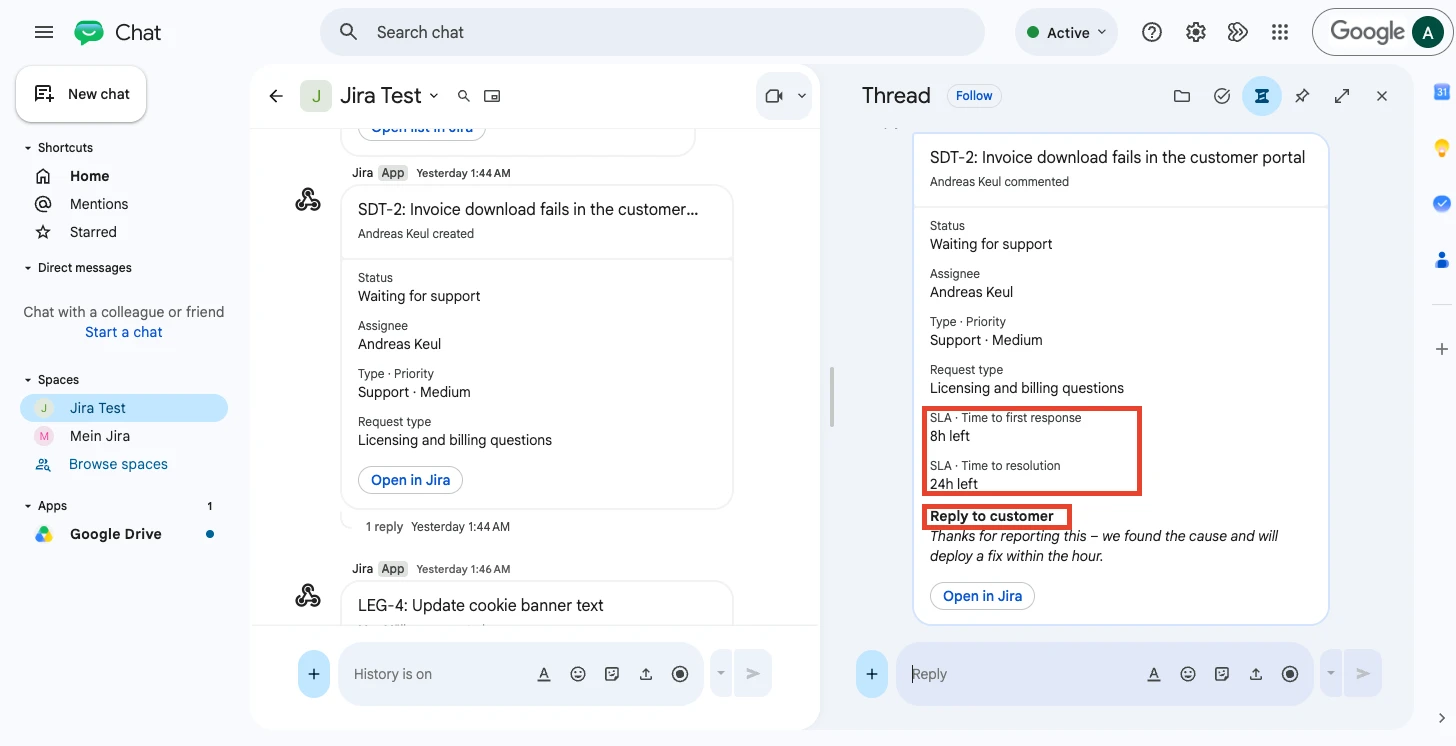
A card with the work item key and summary, who made the change, status (for status changes: old → new), assignee, type and priority, the changed fields or up to 600 characters of the comment, and an Open in Jira button. Personal notifications also show why you receive them.
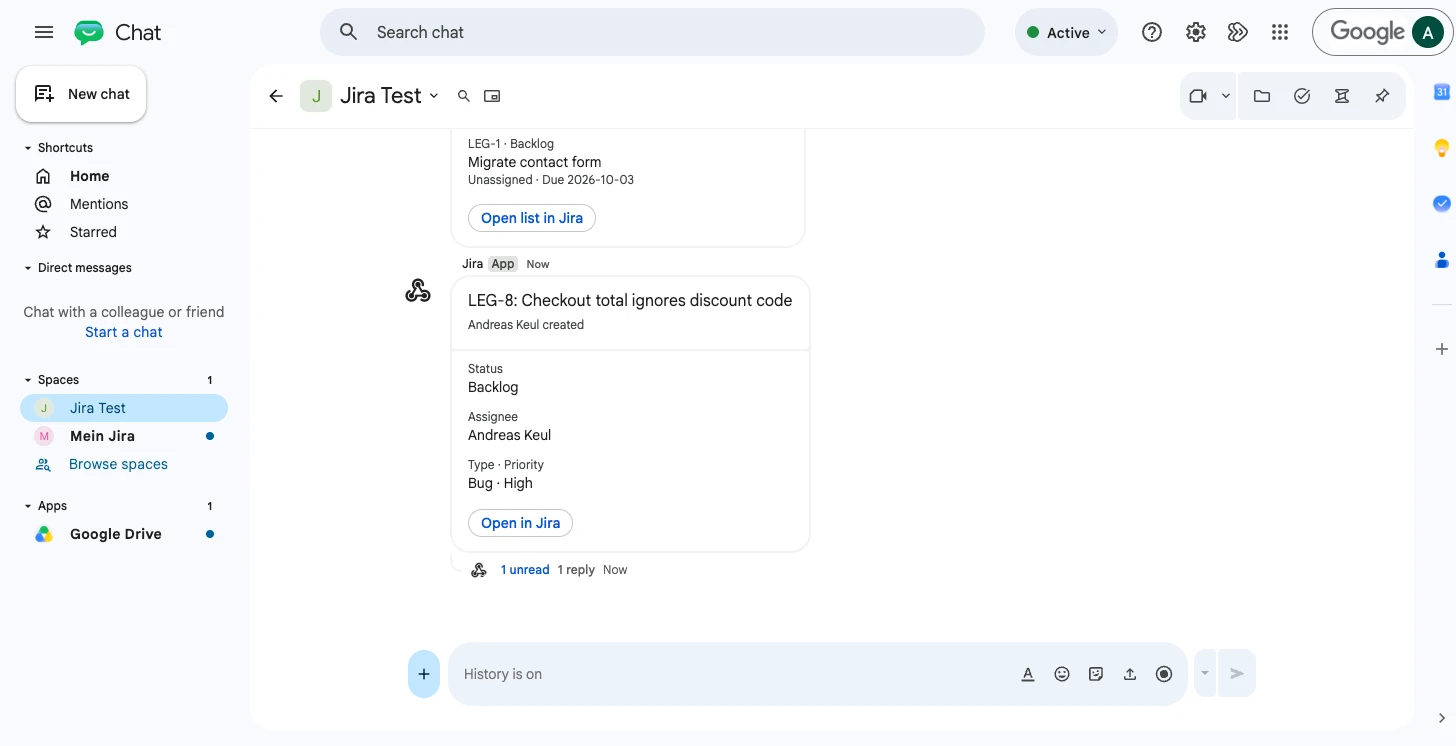
For Jira Service Management requests the card also shows the request type and the running SLAs (time left, breached or paused), and comments are marked as Internal note or Reply to customer.
7. Limits and troubleshooting
- Google Chat accepts about one message per second per space. When Google rate limits, the app retries automatically (up to three times).
- Result 400/404 in Recent deliveries: the webhook URL is wrong or the webhook was deleted in Google Chat – add a new one.
- Result 403: incoming webhooks are blocked by your Google Workspace administrator.
- No message at all: check the space is active and the project, event, status, field and JQL filters match.
- Reports and alerts run once per hour; the exact minute within the hour can vary.
8. Privacy and security
- Runs on Atlassian Forge, without servers of its own. The only outbound connection is to Google Chat (
chat.googleapis.com) – only to spaces you configure. - Webhook URLs are stored encrypted as Forge secrets. The delivery log contains no message content and no account IDs. Report and alert settings and the keys of work items already alerted are stored in Forge storage.
9. More apps by KeulTech
- Dependency Guard for Jira — enforce "is blocked by" links: block Done while blockers are open, notify waiting work items
- Component Archiver for Jira — archive Jira components without losing history and block their reuse
10. Support
Questions or problems: keul.tech/support · Privacy: keul.tech/privacy · Security: keul.tech/security
Google Chat is a trademark of Google LLC.